
How The Cats Herd Themselves
I really dove into the vibe coding concept. In the past, when working on projects that weren’t managed by a producer using some sort of project tracking, I would keep a running to do list on my own. Many times I’d keep it in a README or similar text file. In this post, I’ll share how I evolved my vibe coding tracking workflow to be more scalable using Notion.
Vibe Coding – ooh la la!
The new vibe coding workflow started with me transcribing, and then eventually copy and paste my prompts/directives into Claude Chat. This evolved into using the Jet Brains AI assistant and Junie (AI coding agent with Claude backend).
The New Workflow
I began telling Claude Desktop, and later, Junie to refer to a to do list located in the project, which also included project info for context. This worked out well. Eventually I was able to have a block of text for a prompt that I would just paste into Claude Desktop or Junie (I really like Junie) that would say something like “refer to the to do list doc in the project for the directive on what to do” The doc would also specify your typical constraints (for the current scope of tasks) like “perform this task in a minimal way and do not change any existing functionality”.
Scaling It Up…
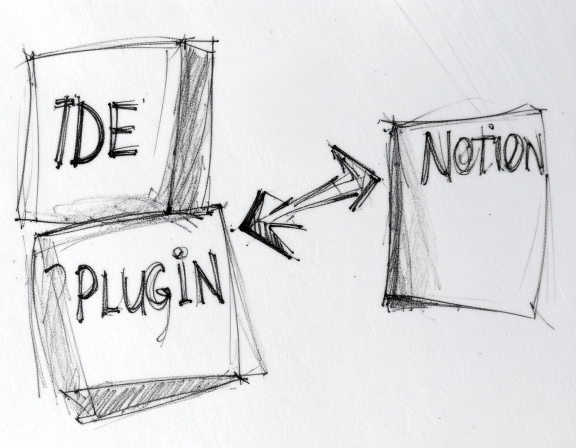
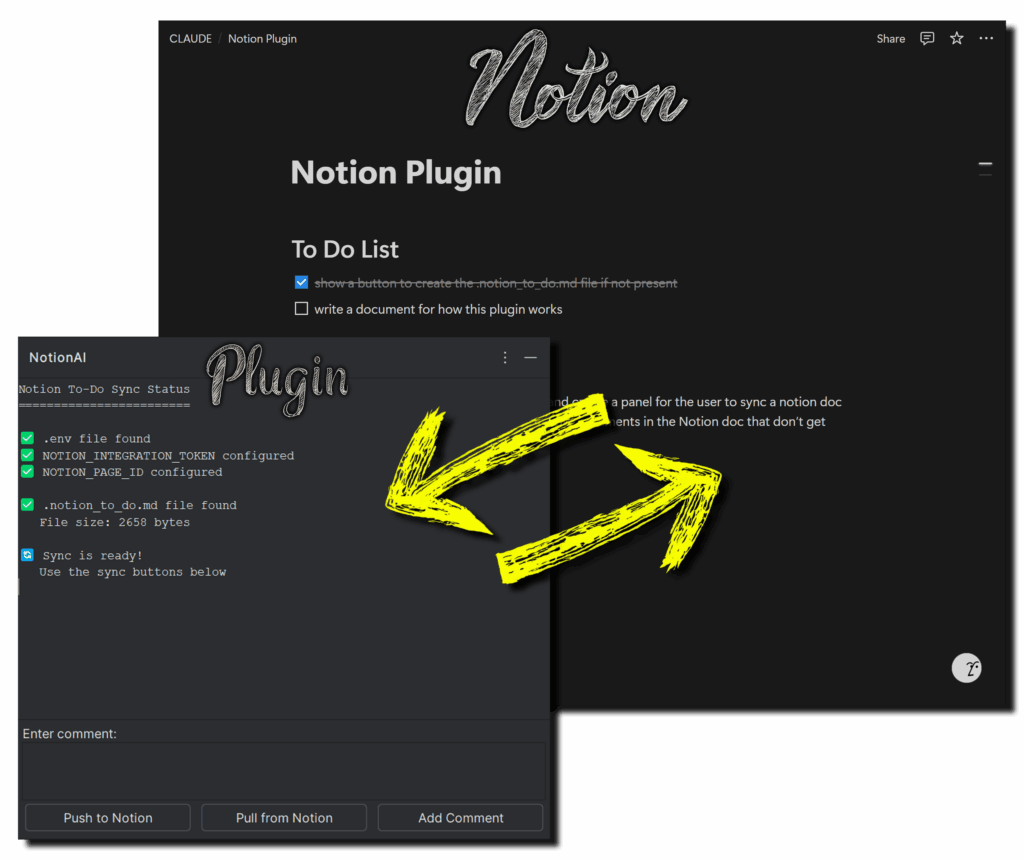
I started thinking about how I might use this workflow in a bigger team project. I’ve been using Notion with other team members before and it’s become quite useful in collaboration. I discovered that you can easily read/write to/from a Notion page with specified read/write permissions. So, easily enough, I did a very quick Jet Brains plugin in python (with my trusty AI helpers) that took a morning to put together.
Lunchtime!
The current state of the plugin will sync (read and write) to and from a specified Notion doc (this is opt in, mostly secure). It correctly manages the most useful markdown text (headers, checkboxes, bullets). It’s really run when I tell Junie to check off the task that was completed, have the doc sync to Notion and see it done! As an added bonus, I gave it the ability to make comments on the doc that don’t affect the text on the Notion doc. I figure I will use this as I build more automation and can have the plugin use comments for a sync log.
Not bad for this cat to get all done before lunch. I think I earned that fish taco.